Streamlining Authentication with Secure, Seamless Integration
Single Sign-On (SSO) enhances user experience by enabling seamless access across multiple applications with a single login. When Oracle APEX is integrated with Microsoft Azure Active Directory (Azure AD), organizations benefit from centralized identity management, improved security, and streamlined user access.
In this guide, we’ll walk through configuring SSO for Oracle APEX using Microsoft Azure AD, ensuring a secure and efficient authentication flow for enterprise applications.
Prerequisites
Before you begin, make sure the following requirements are in place:
- Oracle APEX environment (version 20.x or higher recommended)
- Administrator access to Microsoft Azure Portal
- Accurate time zone and UTC settings configured in your APEX environment (misconfigured time can cause token verification failures)
Step 1: Register Oracle APEX as an Application in Azure AD
- Sign in to Azure Portal: Navigate to https://admin.microsoft.com
- Go to Azure Active Directory:
- Click on Identity → Applications → App registrations
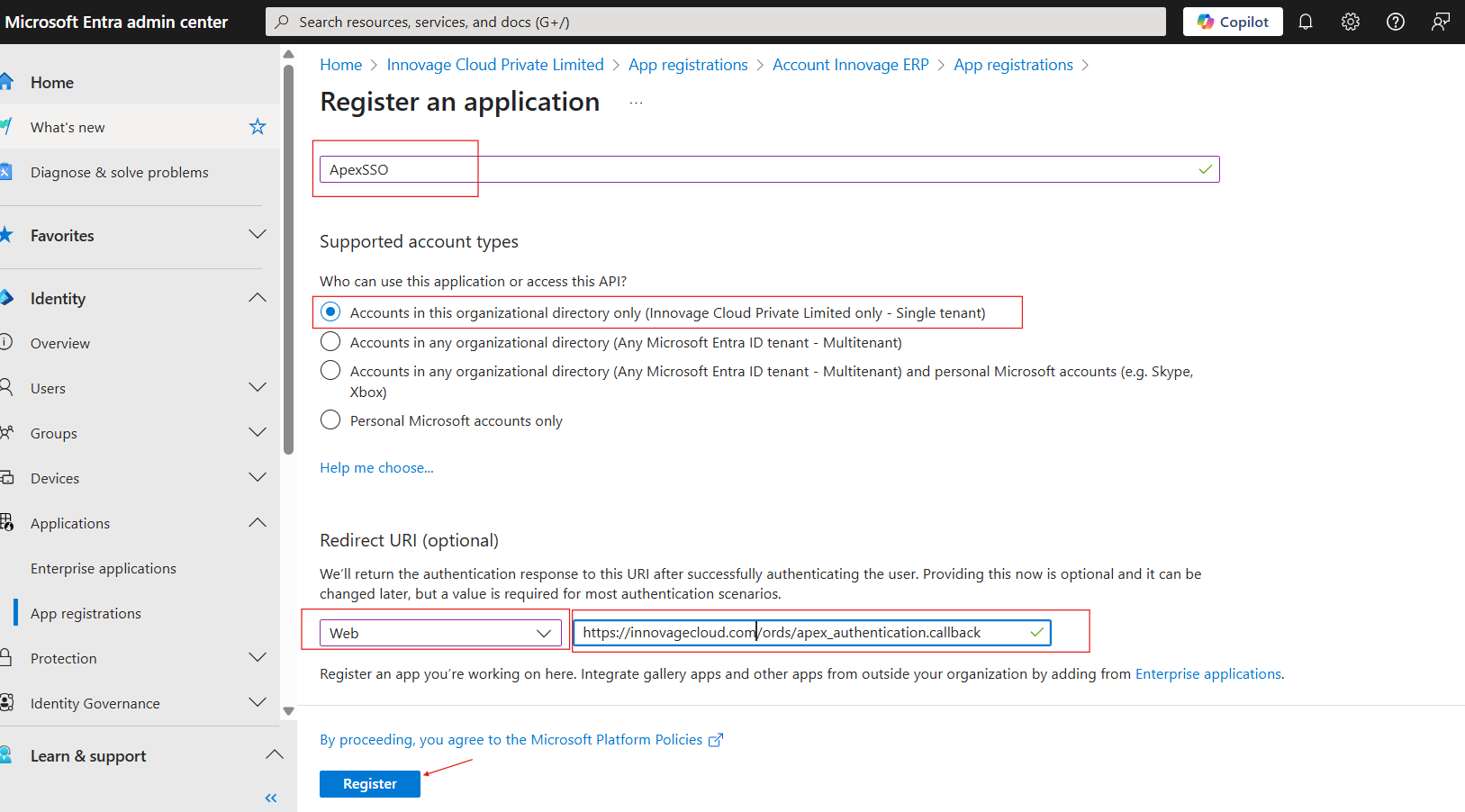
- Click New Registration
- Register the APEX Application:
- Name: e.g.,
OracleAPEXSSO
- Supported account types: Select based on your requirements (e.g., Single Tenant)
- Redirect URI: Choose “Web” and enter:
https://<your-apex-domain>/ords/apex_authentication.callback
-
 Post-registration:
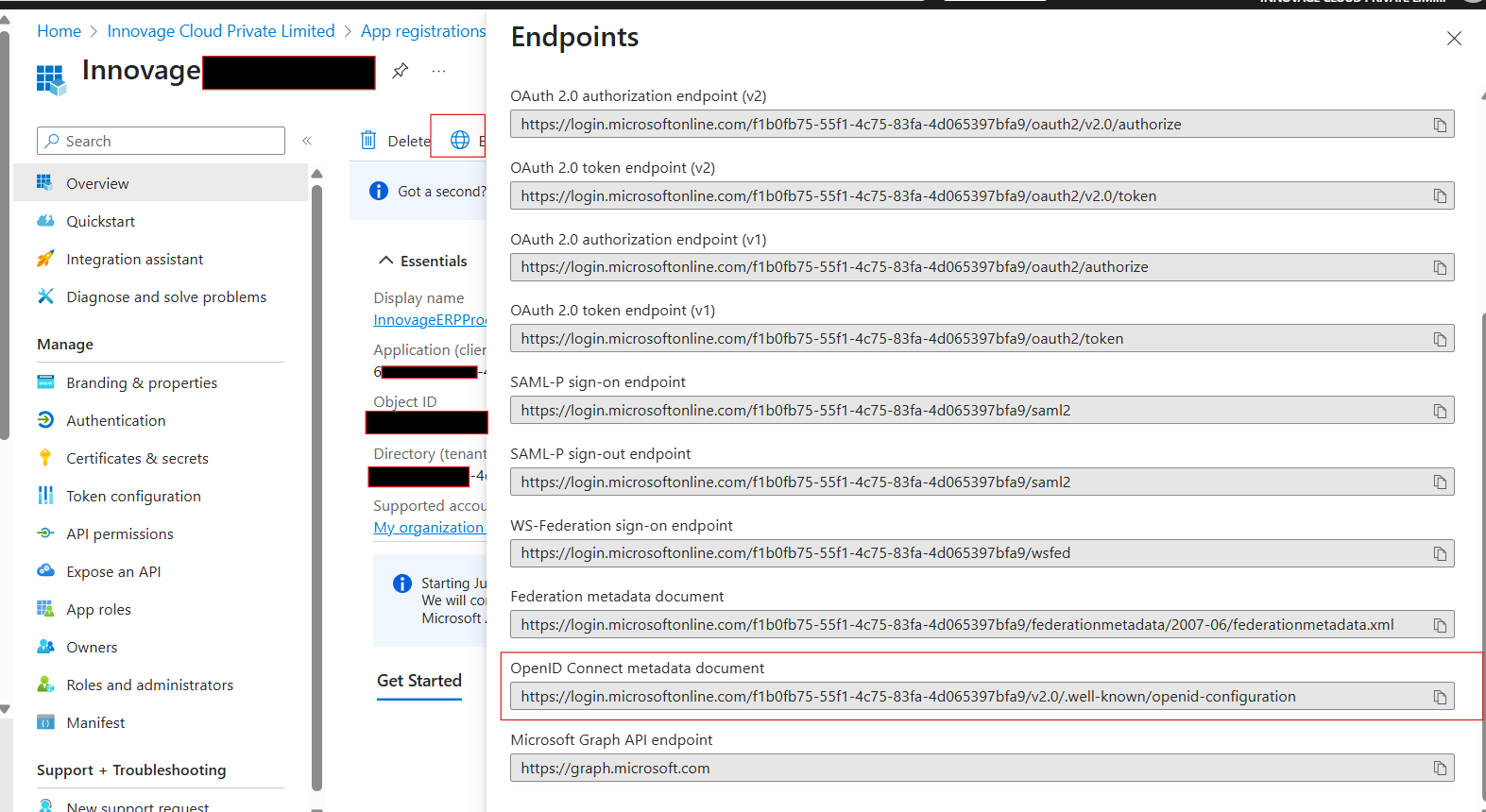
- Navigate to App registrations, select your app
- Note down the Application (client) ID and Directory (tenant) ID
- Go to Endpoints, and copy the OpenID Connect metadata document URL
- Create a Client Secret:
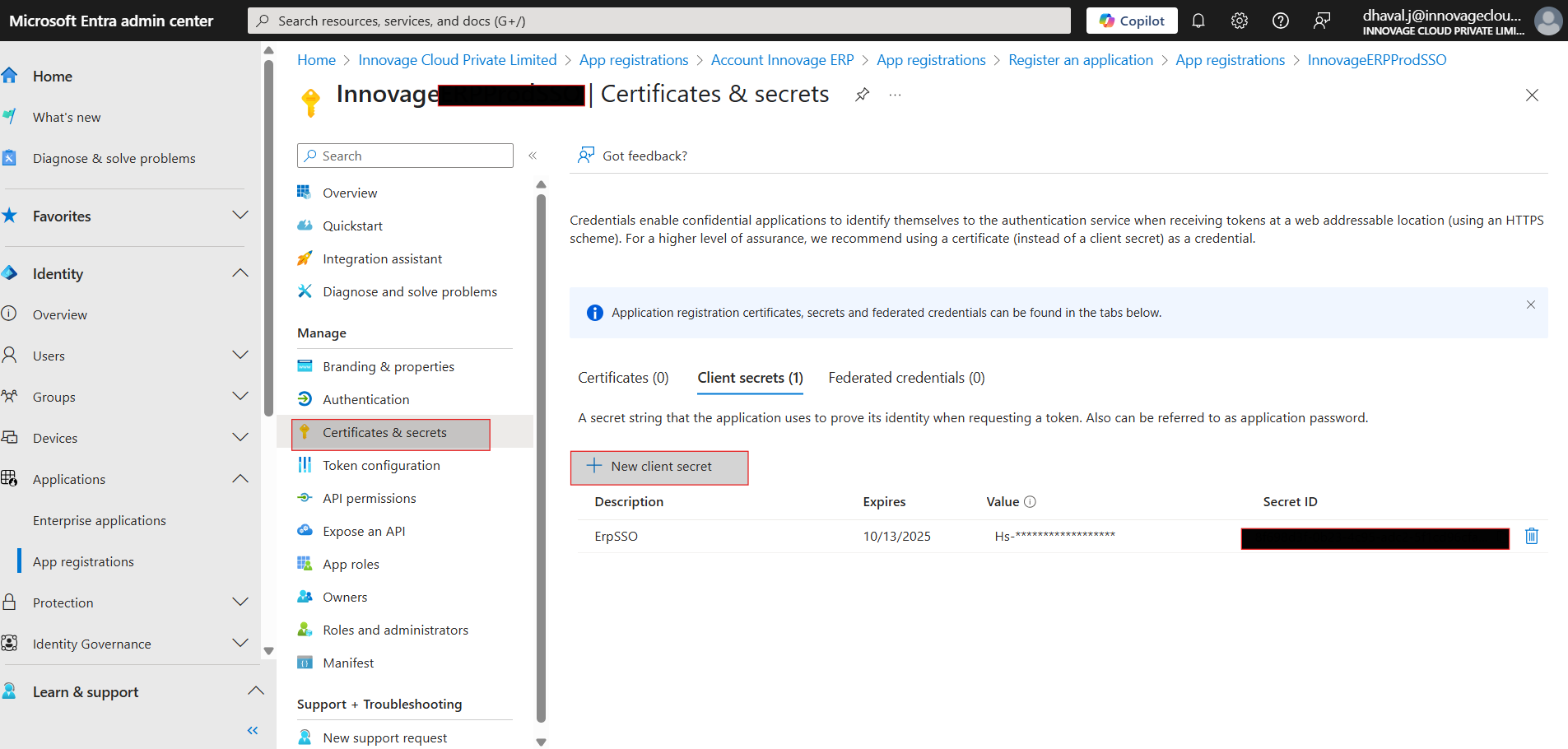
- Under Certificates & Secrets, click New Client Secret
- Add a description and click Add
- Important: Copy and securely store the client secret value — it won’t be visible again.
Step 2: Configure Oracle APEX for Azure SSO
Create OAuth2 Credentials
- Open your Oracle APEX application.
- Navigate to Shared Components → Credentials
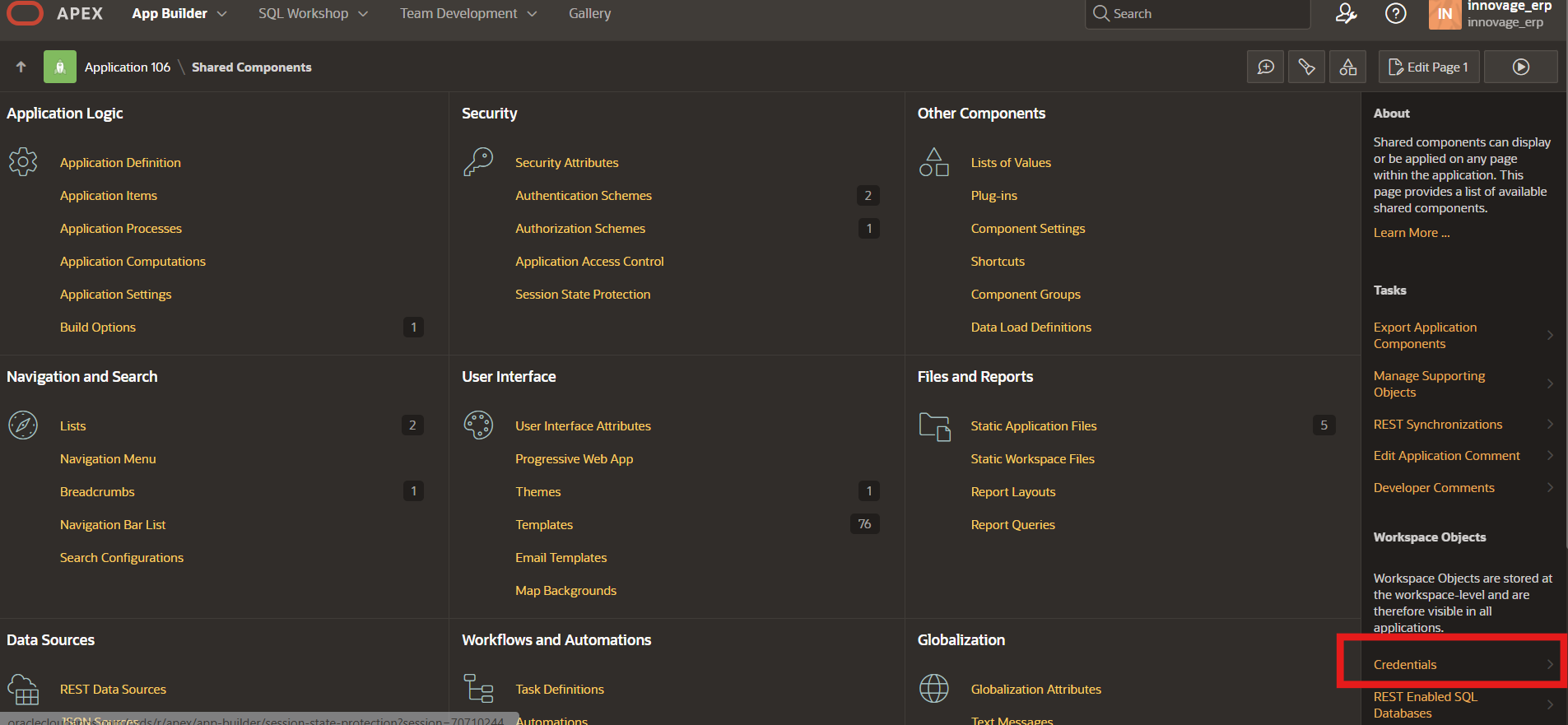
- Click Create
- Fill in the following details:
- Authentication Type: OAuth2 Client Credentials
- Client ID / Username: Use the Application (client) ID
- Client Secret / Password: Use the client secret created in Azure

- Click Create to store the credentials securely.
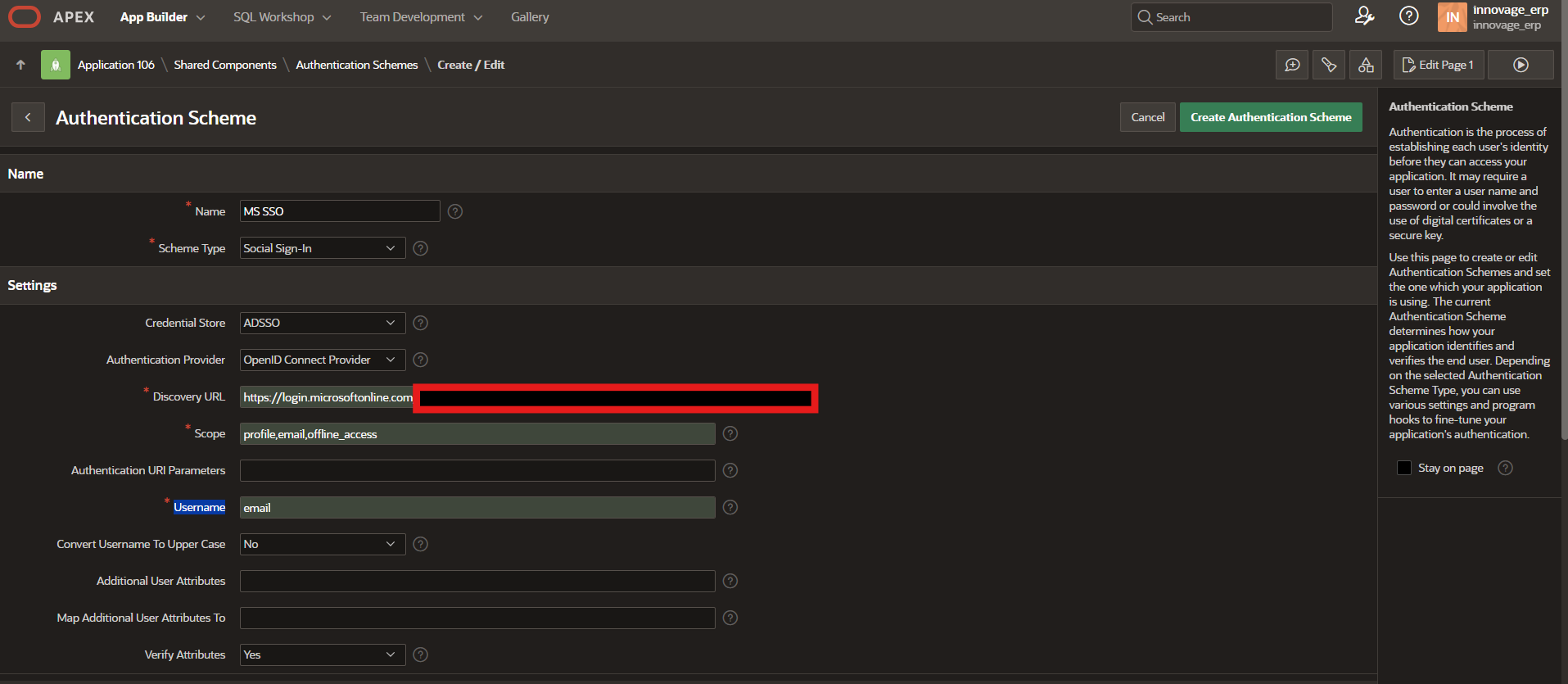
Create an Authentication Scheme
- In Oracle APEX, go to Shared Components → Authentication Schemes
- Click Create → From Scratch
- Enter the following:
- Name: e.g., MS SSO
- Scheme Type: Social Sign-In
- Credential Store: Select the credentials you just created
- Authentication Provider: OpenID Connect Provider
- Discovery URL: Paste the OpenID Connect metadata URL copied earlier
- Scope: profile email offline_access
- Username Attribute: email
- Click Create Authentication Scheme
Activate the Authentication Scheme
- Go to Authentication Schemes, select your newly created scheme
- Click Set as Current
- Click Apply Changes

Your application is now configured to use Microsoft Azure SSO. Launch your app and verify the login flow.
Final Thoughts
Integrating Azure Active Directory with Oracle APEX not only improves security but also enhances user convenience and IT efficiency. By leveraging OpenID Connect, administrators can implement industry-standard authentication protocols and align with enterprise IAM strategies — all while delivering a smoother user experience.